
Nayax Onyx installation and setup
In this video you will find step-by-step installation instructions for a secure fit of your Nayax Onyx payment terminal.
Configuring your new Nayax terminal
1. Creating a new machine
- First you need to login with the credential received from Nayax distributor when you purchased the terminal, on this URL.
- Click on Operations/Machines/Create/New Machine
- Fill in the required information.
Important:
- For the Machine Model choose Pulse/Pulse Machines/Generic Pulse from the dropdown menu.
- For the Sales Source choose Live Transactions from the dropdown menu.
- In the Hardware section type in the Device Number you received from your Nayax distributor.
2. Assigning the attributes
Now that you have created a new machine, you can set up the machine attributes.
Navigate to a specific machine:
- Click on Operations/Machines
- Choose the Operator and click on Search
- Select the specific machine under the hierarchy
Assign attributes to the machine:
- Click on the Attributes tab
- Under the Group filter, click on Pulse/ccTalk
- From the Machine Attributes displayed, check all the boxes to enable all the Pulse/ccTalk options.
Click Save to store all the information. Now navigate back to specific machine configuration - General tab.
3. Setting the machine attributes
- In the Payment section check the box for the Choose Product Timeout (sec) parameter and set the value to 20.
- Navigate to the Pulse/ccTalk tab.
- Check the boxes in front of the following attributes and set values as in the table below:
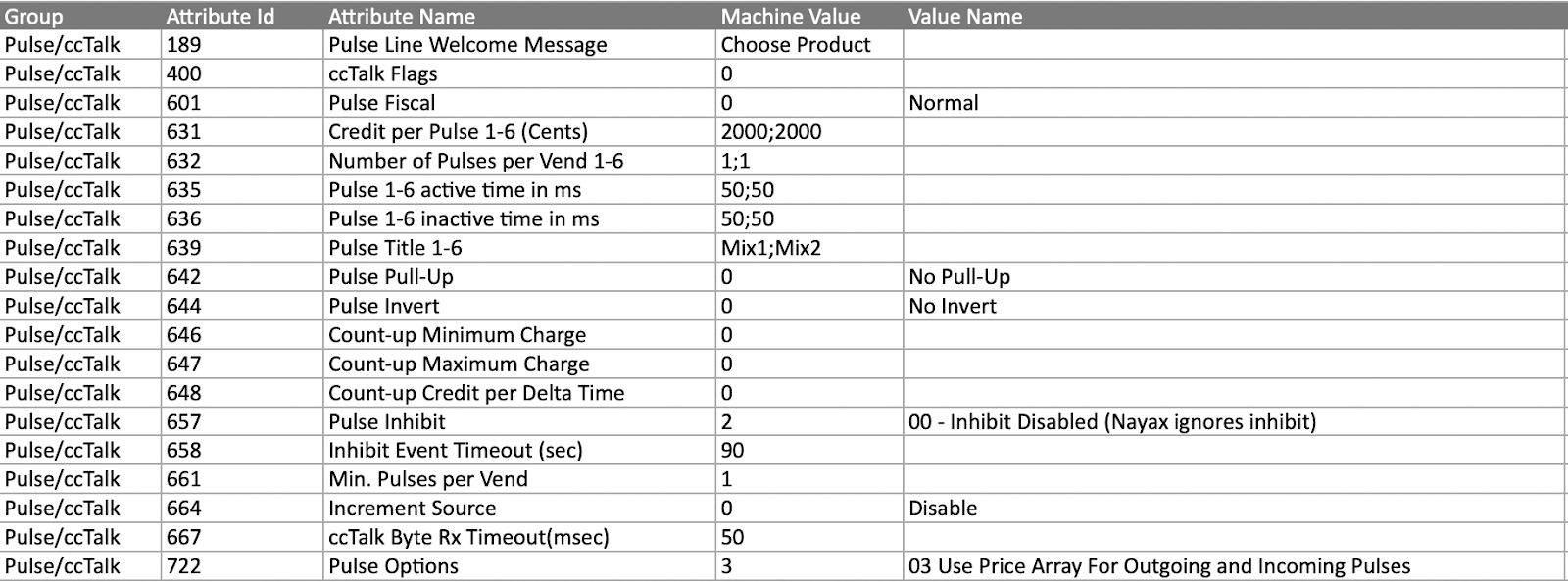
- Click on Save
- Click on Actions/Reload Configuration
- Click on Actions/Reboot Device
Changing product prices
Update the values in the attribute Credit per Pulse 1-6 (Cents): 2000;2000.
First number is the price for the product in the left container and the second number is the price for the second container.
Note: Always separate values with semicolons. Values are in cents, so 2000 is 20,00 units in your local currency.
Changing product names
Update the titles in the attribute Pulse Title 1-6: Mix1;Mix2.
First is the title for the left side container and the second is the title for the right side container.
Note: Product name is limited to 8 characters. Always separate titles with semicolons.